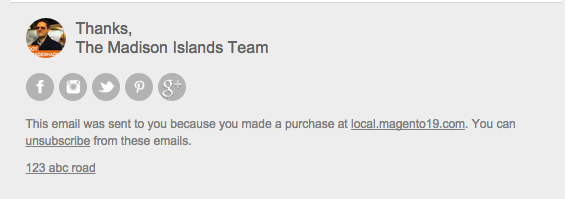
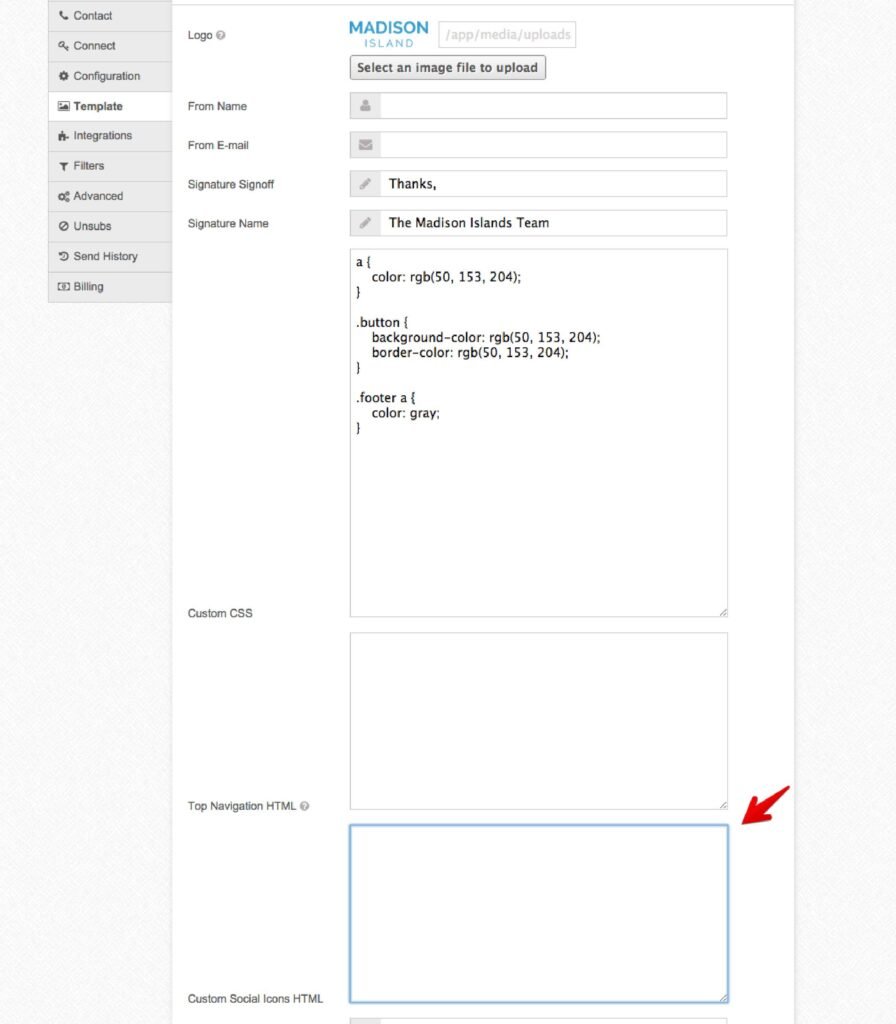
If you want to use custom markup / images for the social media icons in the footer of the email, here’s how you can do that. You can drop the custom markup under Settings > Template > Custom Social Icons HTML:
Here’s the markup that you’ll want to start with and customize:
<table class="custom-social-footer" cellspacing="0" cellpadding="0"><tr>
    <td class='social-icon-wrapper'>
        <table class="social-icon facebook" cellspacing="0" cellpadding="0"><tr><td>
            <a href="https://facebook.com/{{ settings.facebook_handle }}">
                <img border="0" src="{{ facebook_image_url }}">
            </a>
        </td></tr></table>
    </td>
    <td class='social-icon-wrapper'>
        <table class="social-icon instagram" cellspacing="0" cellpadding="0"><tr><td>
            <a href="https://instagram.com/{{ settings.instagram_handle }}">
                <img border="0" src="{{ instagram_image_url }}">
            </a>
        </td></tr></table>
    </td>
    <td class='social-icon-wrapper'>
        <table class="social-icon twitter" cellspacing="0" cellpadding="0"><tr><td>
            <a href="https://twitter.com/{{ settings.twitter_handle }}">
                <img border="0" src="{{ twitter_image_url }}">
            </a>
        </td></tr></table>
    </td>
    <td class='social-icon-wrapper'>
        <table class="social-icon pinterest" cellspacing="0" cellpadding="0"><tr><td>
            <a href="https://www.pinterest.com/{{ settings.pinterest_handle }}">
                <img border="0" src="{{ pinterest_image_url }}">
            </a>
        </td></tr></table>
    </td>
    <td class='social-icon-wrapper'>
        <table class="social-icon google_plus" cellspacing="0" cellpadding="0"><tr><td>
            <a href="{{ settings.google_plus_url }}">
                <img border="0" src="{{ google_plus_image_url }}">
            </a>
        </td></tr></table>
    </td>
    <td class='social-icon-wrapper'>
        <table class="social-icon youtube" cellspacing="0" cellpadding="0"><tr><td>
            <a href="http://www.youtube.com/{{ settings.youtube_handle }}">
                <img border="0" src="{{ youtube_image_url }}">
            </a>
        </td></tr></table>
    </td>
    <td class='social-icon-wrapper'>
        <table class="social-icon blog" cellspacing="0" cellpadding="0"><tr><td>
            <a href="{{ settings.blog_url }}">
                <img border="0" src="{{ blog_image_url }}">
            </a>
        </td></tr></table>
    </td>
</tr></table>
Notice how you have access to some template variables from within the markup.
Once you save, you’ll be able to refresh the email preview to see what it looks like: